Your Andriod is now
your HY10 card

Use Google Pay wherever you see one of these symbols.

How to add a card
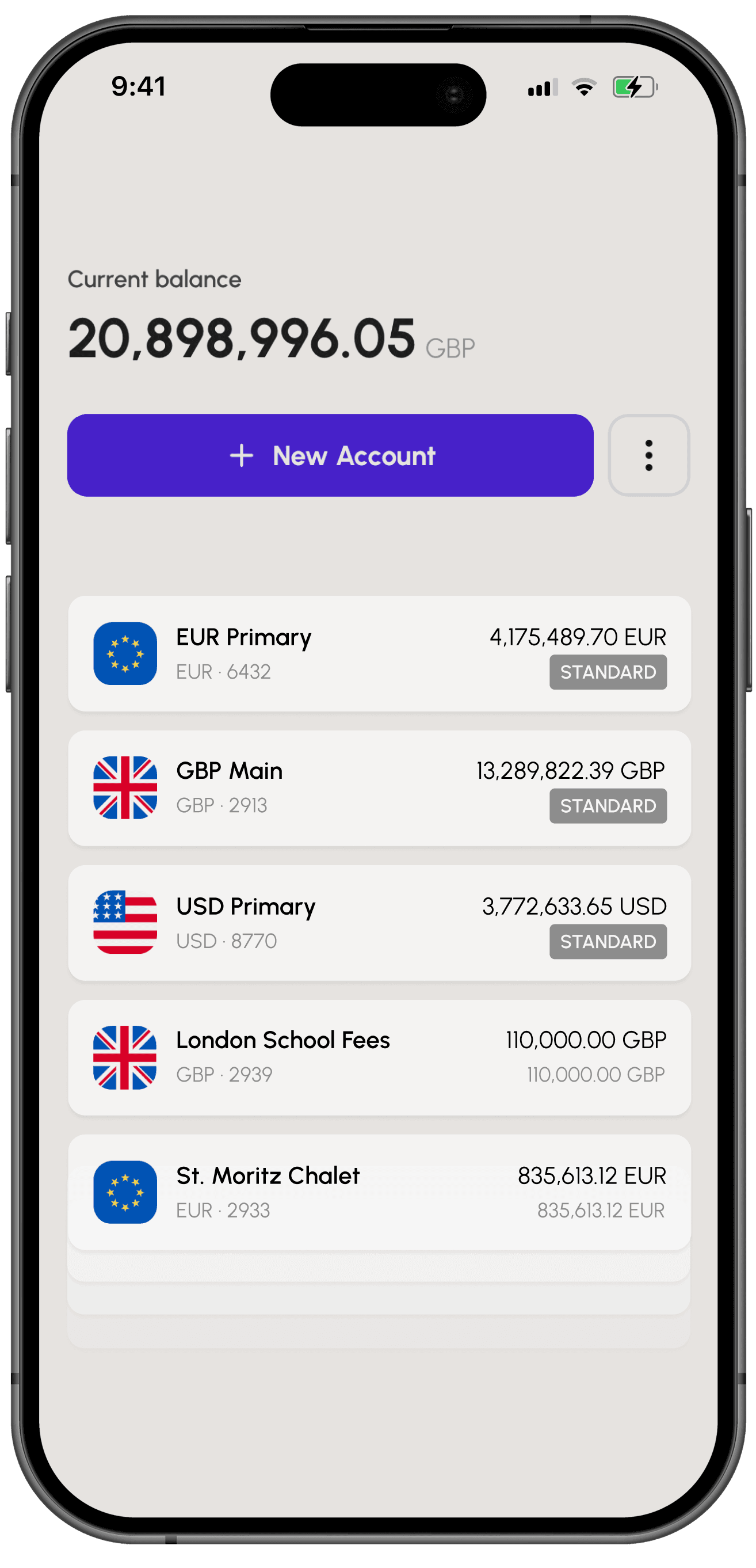
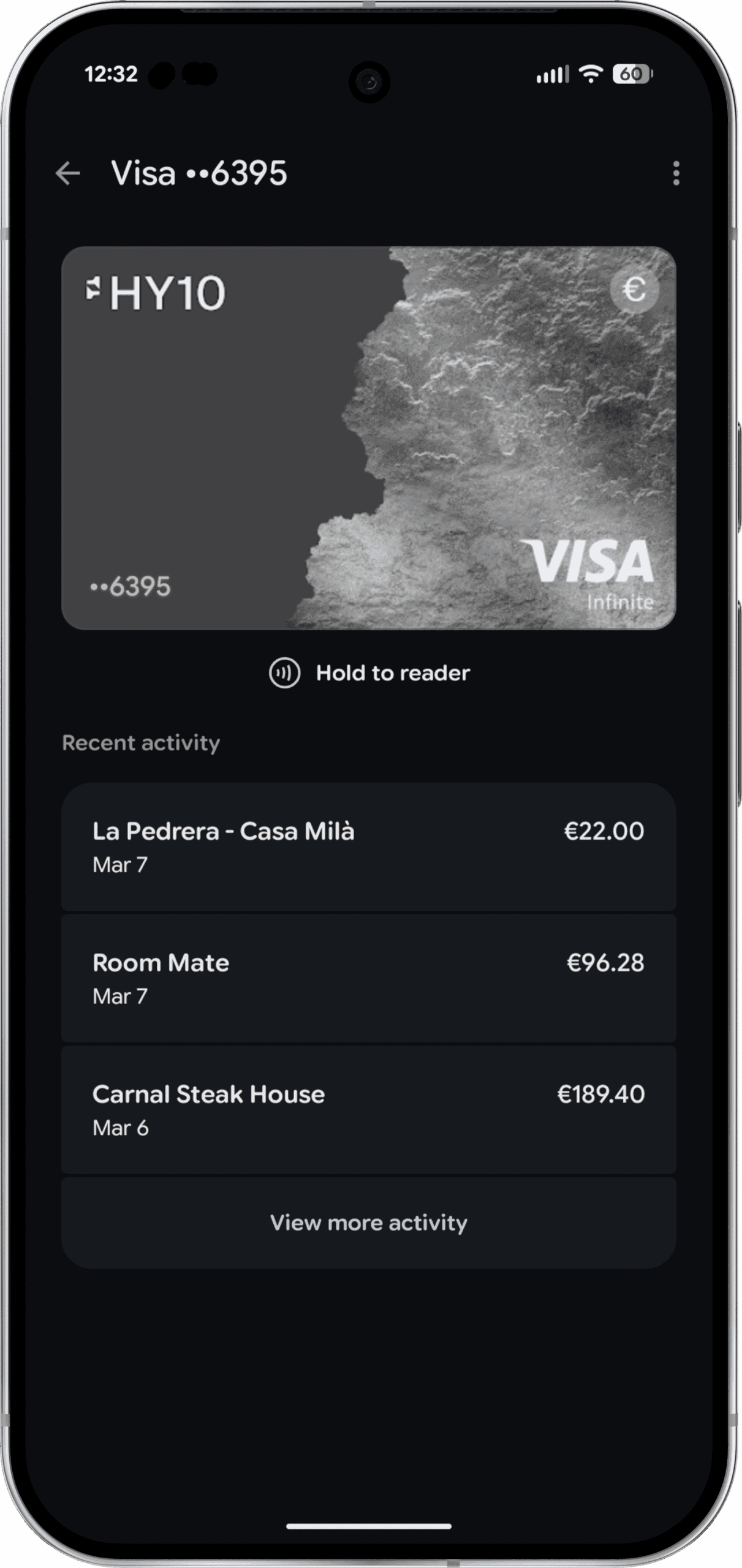
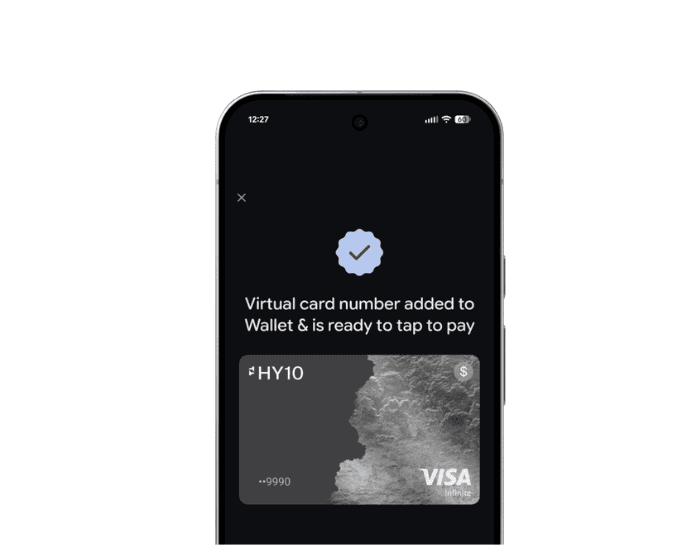
Add your HY10 card in three steps
FAQs
Google Pay works on Android phones and tablets running Android 5.0 (Lollipop) or later with NFC enabled, as well as Wear OS smartwatches. For online and in-app payments, any device with Google Chrome and a linked Google Account is supported. A full list of compatible devices is available at pay.google.com.
Open Google Wallet on your Android device and tap “Add to Wallet”. Select “Payment card” and either scan your HY10 Visa card or enter the details manually. Follow the on-screen verification steps — you’ll receive a confirmation code via the HY10 app or SMS. Once verified, your card is ready to use.
Yes. Google Pay works wherever contactless Visa payments are accepted, including stores, restaurants, transport systems, and more across 40+ countries. Your HY10 card’s standard international spending and currency features apply as normal.
Use Google Find My Device to remotely lock or erase your device immediately. This suspends all Google Pay transactions. You can also temporarily freeze your HY10 card directly from the HY10 app for added peace of mind.
Contactless payments may be subject to limits set by individual merchants or your device’s authentication settings. For high-value transactions, you’ll be prompted to authenticate with your biometrics or PIN. HY10’s standard card limits apply regardless of payment method.
Google Pay never stores or transmits your real card number. Instead, a unique virtual account number (token) is used for every transaction. Your HY10 card details remain encrypted on your device and are never shared with merchants or stored on Google’s servers.
Unlimited.
Understood.
Seamless finance and lifestyle tools, made for the few.